A division of Stadtwerke Kufstein.

E-Mail-FAQs

Webmail Login

To access your KufNet emails via the webmail service, follow these steps:

  1. Open a web browser.
  2. In the address bar, enter: webmail.kufnet.at and press Enter.
  3. Enter your username – this is your email address without @kufnet.at.
  4. Enter your password.
  5. Click Login to access your email inbox.
Changing Your Password via Webmail

If you wish to change the password for your KufNet email account, follow these steps:

  1. Log in at www.webmail.kufnet.at using your current login credentials.
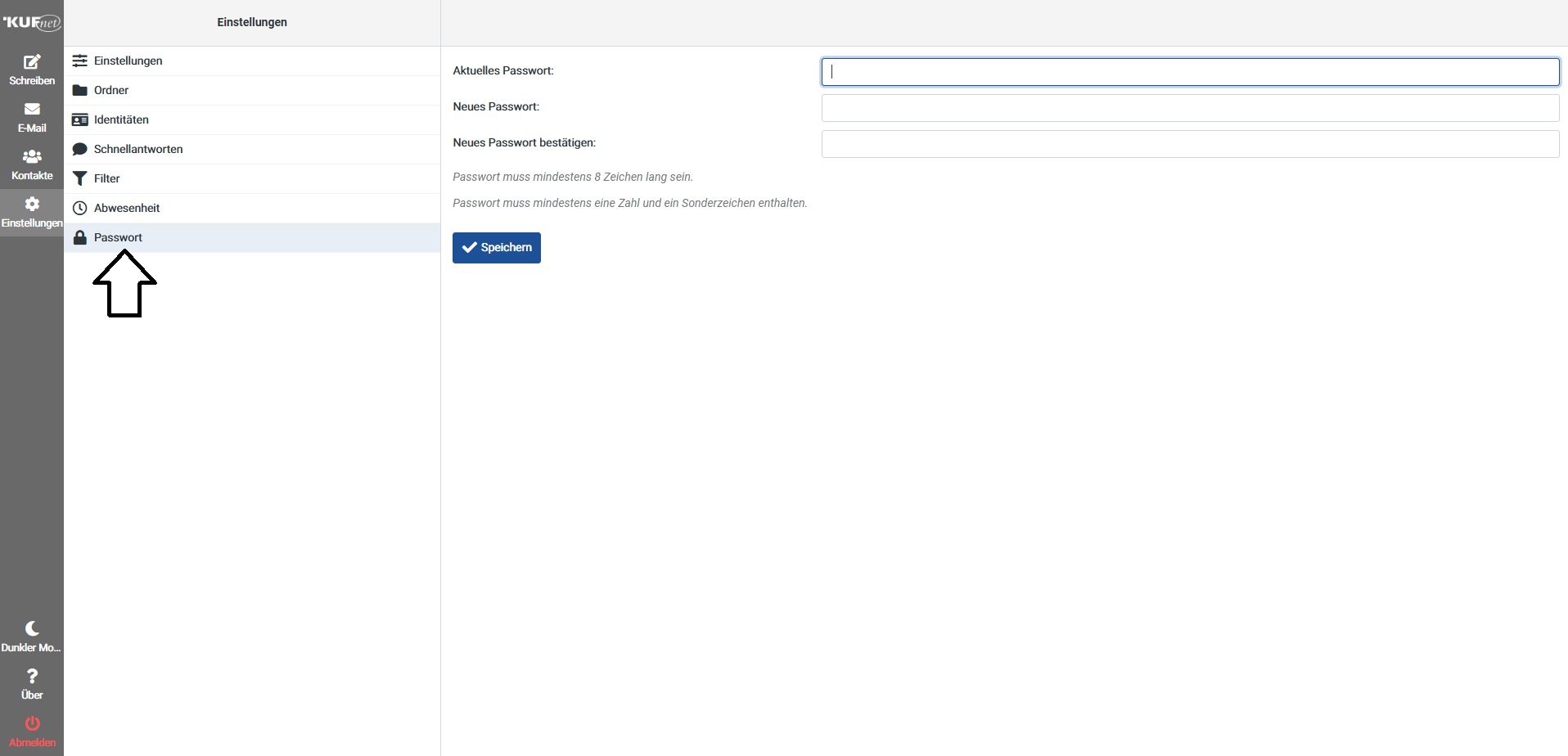
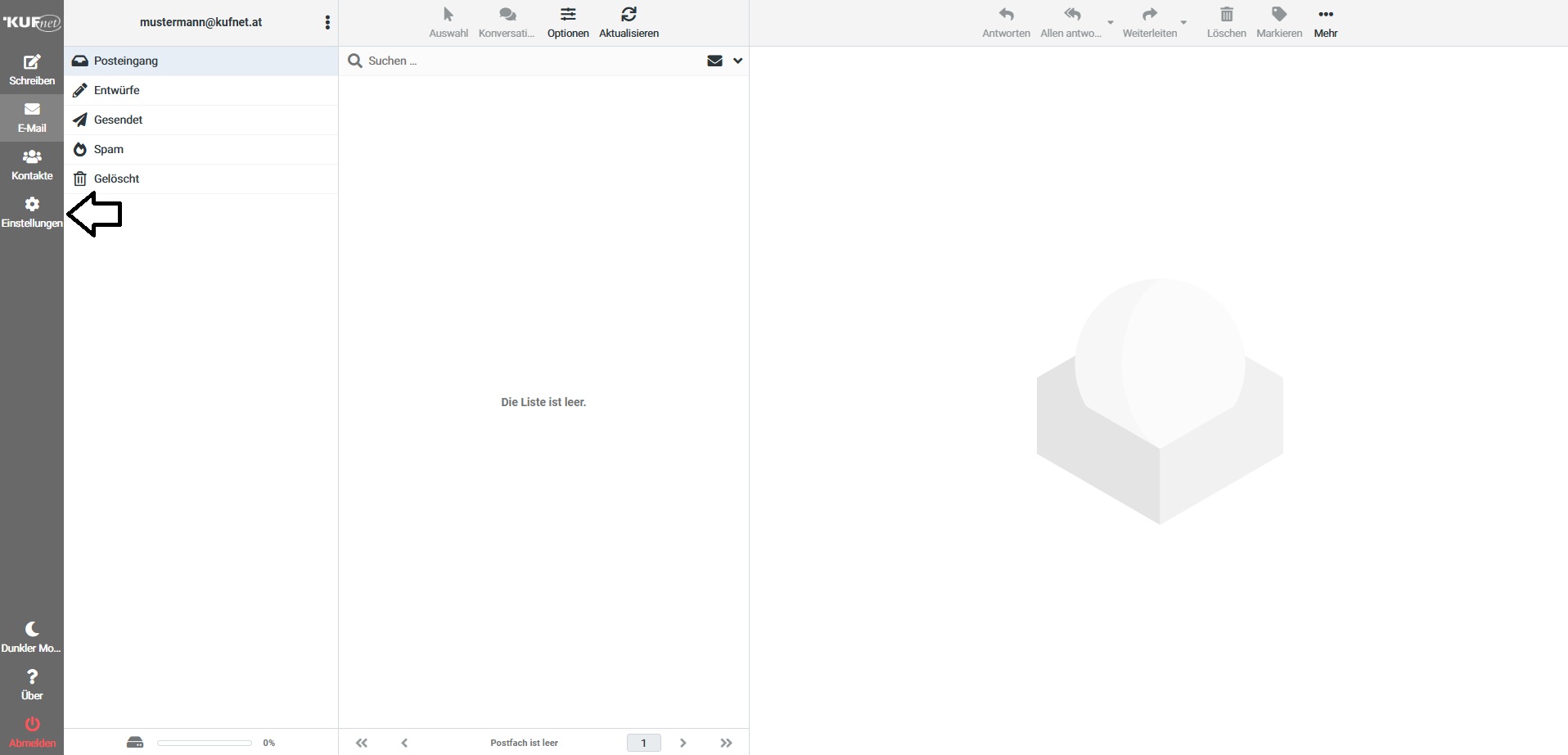
  2. Click on Settings in the left-hand menu.
  3. Select the Password tab.
  4. Enter your current password, then enter your new password twice.

Your new password is now active.

1
2
What to Do If You Forget Your Email Password

If you've forgotten your KufNet email password, there are two ways to recover it:

In Person:
Visit us at the customer center of the Stadtwerke Kufstein. Please bring a valid form of ID (driver’s license or passport).

By Phone:
Call our service team and we will send your new password to you by mail.


+43 5372 6930 351

Webmail Email Forwarding

If you would like to automatically forward incoming emails to another address, follow these steps:

  1. Log in at webmail.kufnet.at with your credentials.
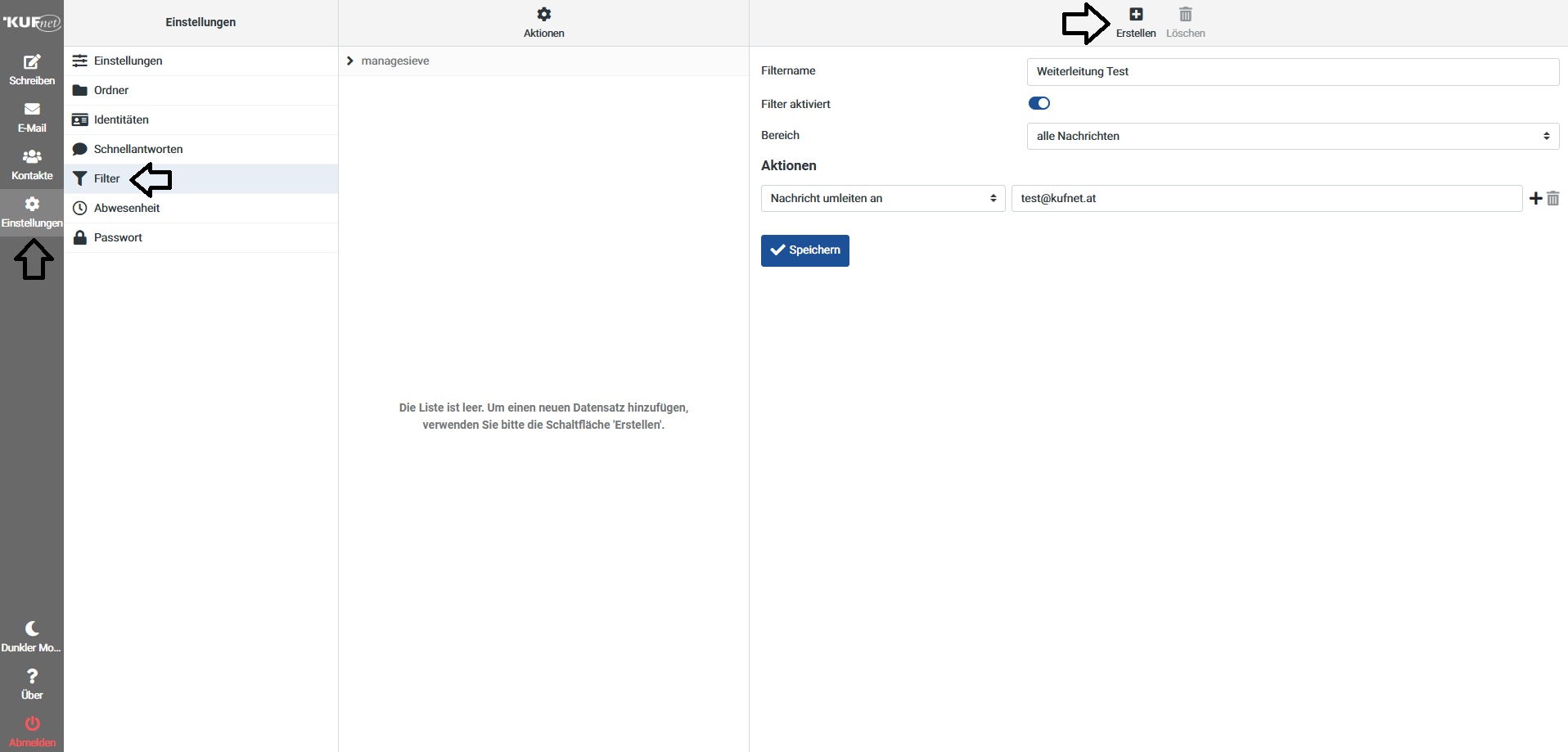
  2. Click on Settings in the left menu, then select the Filter tab.
  3. Create a new filter by clicking Create in the top right corner.
  4. Give the filter a name of your choice. Set the condition to “All messages”.
  5. In the action dropdown, select "Redirect message to", then enter the desired forwarding email address.
  6. Save your settings.

From now on, all incoming emails will automatically be forwarded to the specified address.

1
Mail Server Settings

Incoming Server: imap.kufnet.at
Outgoing Server: smtp.kufnet.at
Email Protocol: IMAP

IMAP Ports: 143 (unencrypted), 993 (SSL/TLS, STARTTLS)

SMTP Ports: 25 (unencrypted), 465 (SSL/TLS), 587 (STARTTLS)

Username: Your email address (without @kufnet.at)
Password: Your assigned password

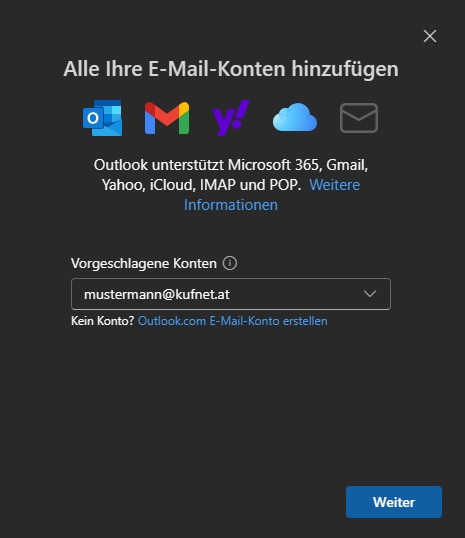
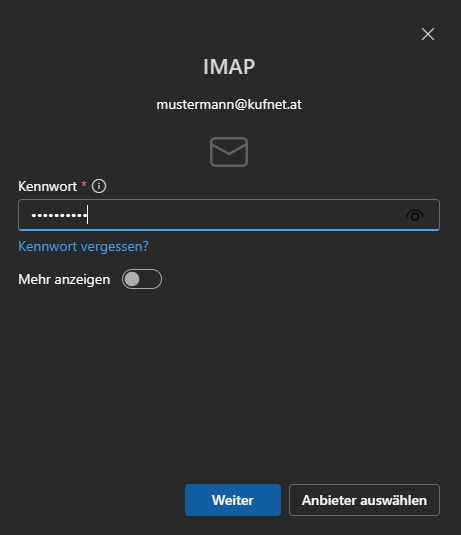
Setup: Windows 11 (Outlook)

If you'd like to set up your KufNet email account in the Windows Mail app (Outlook), please follow these steps:

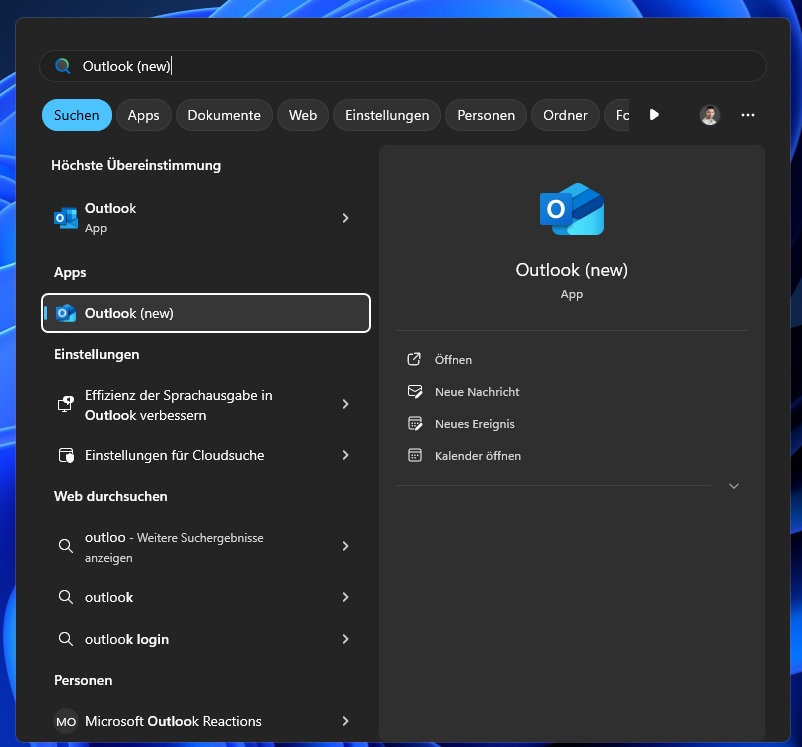
  1. Click on the search bar and type "Outlook," then open the Outlook app.
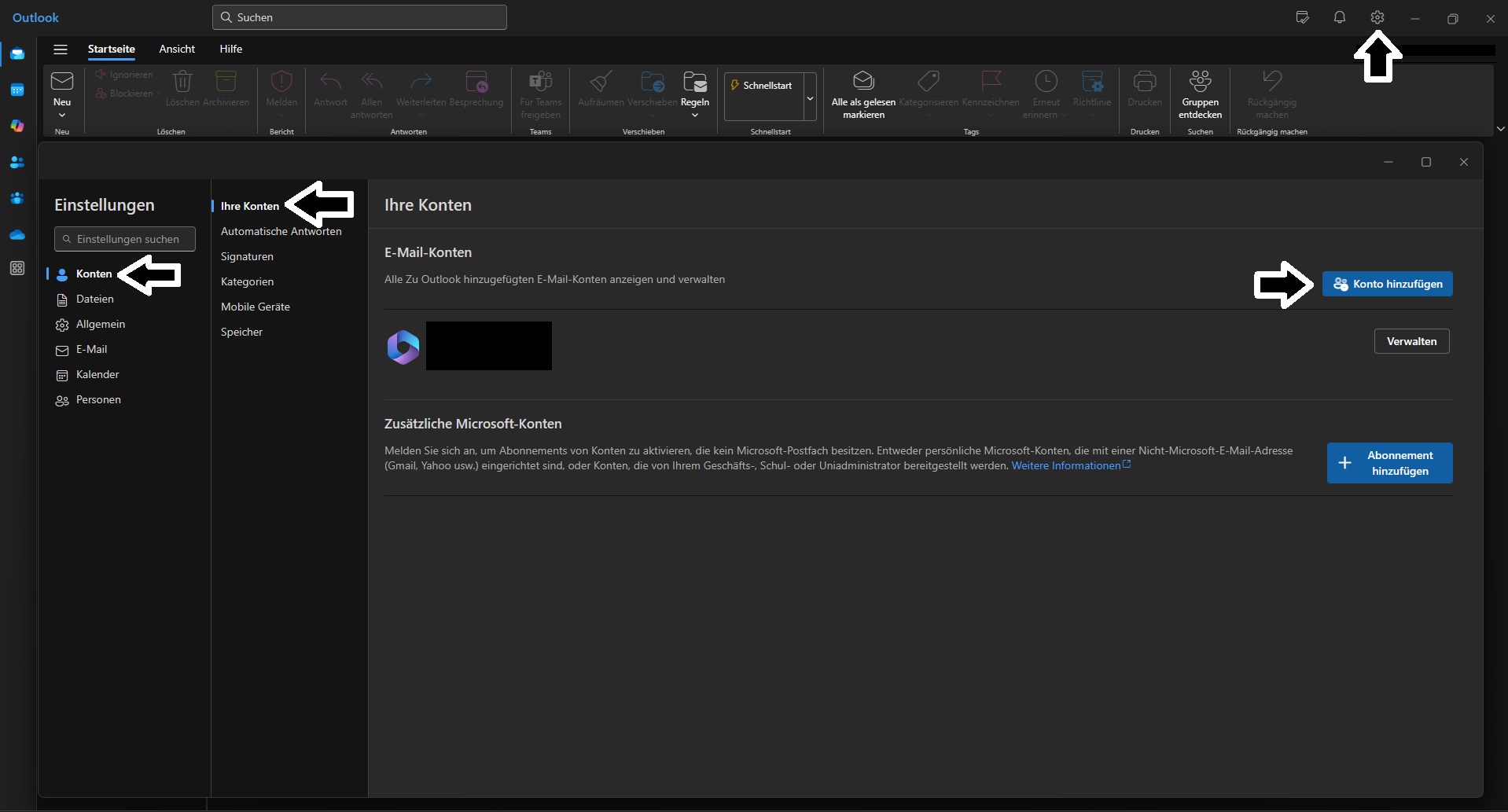
  2. In the top right corner, click the gear icon, then select "Accounts" and click "Add Account"
  3. Enter your email address and, in the next step, your password.
1
2
3
4
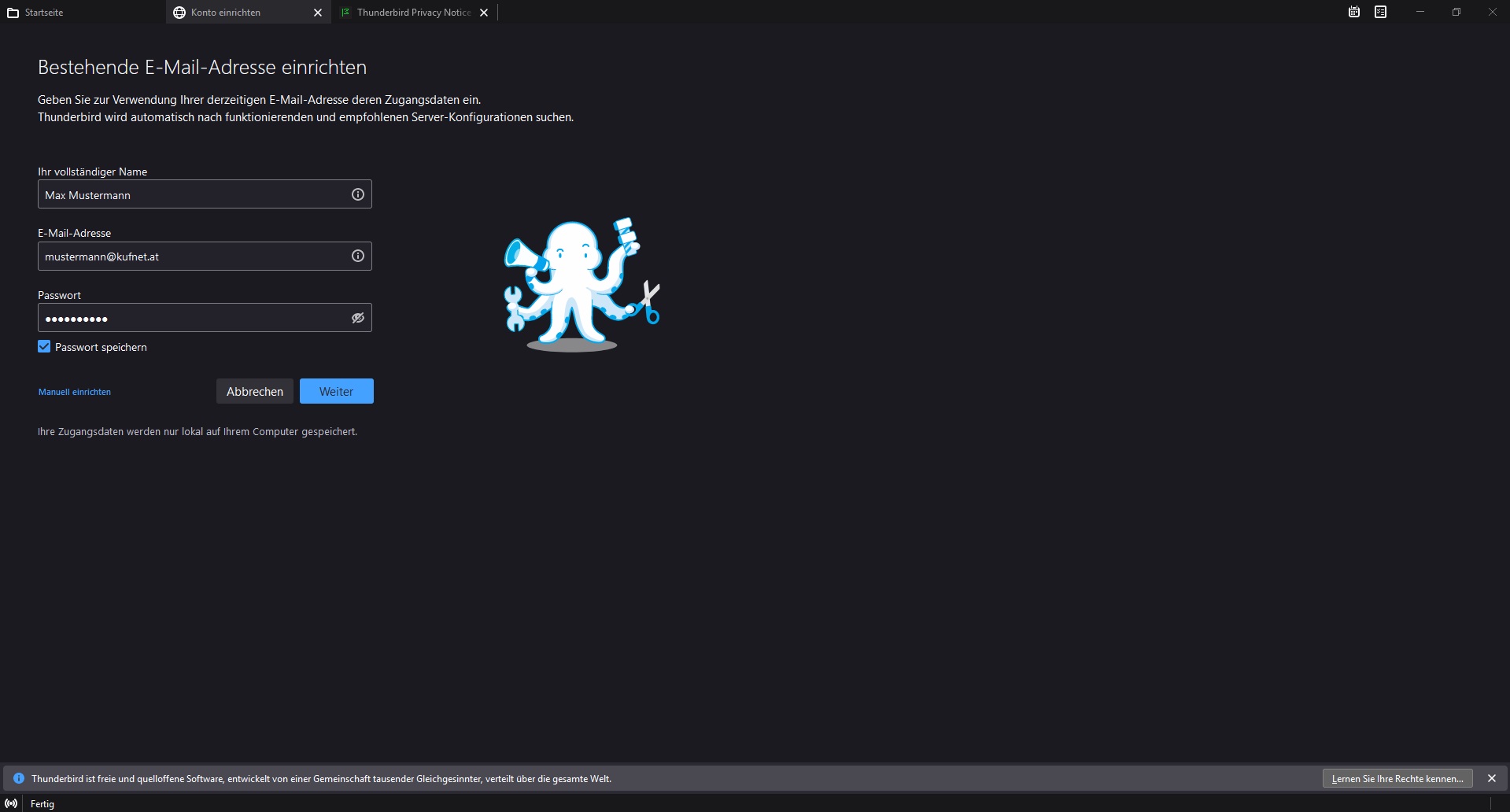
Setup: Mozilla Thunderbird

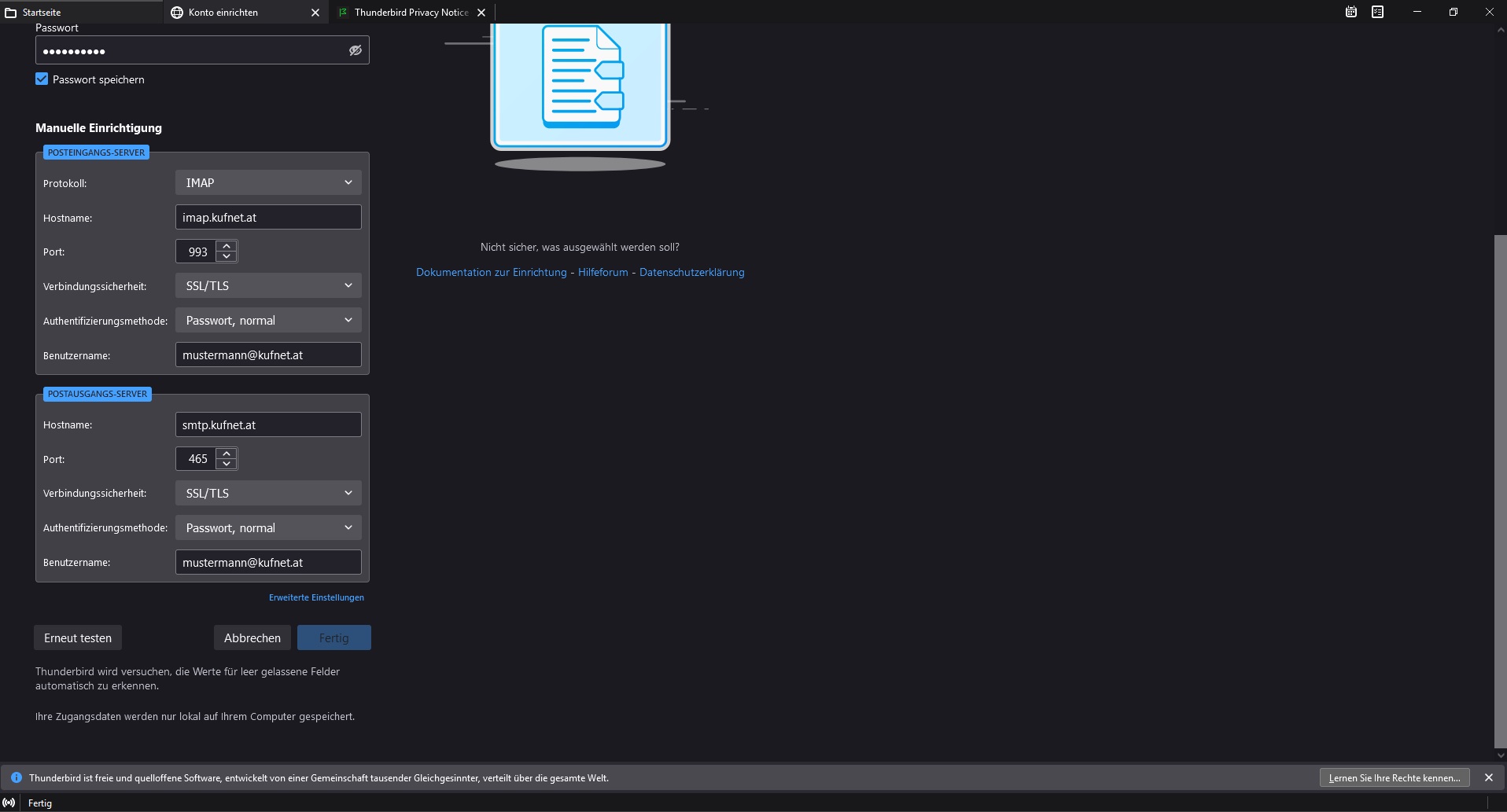
If you’d like to set up your KufNet email account in Mozilla Thunderbird, please follow these steps:

  1. Enter your name, email address, and email password, then select “Manual Setup.”
  2. Check that the incoming mail server hostname is set to imap.kufnet.at and the outgoing mail server hostname is smtp.kufnet.at.
  3. Test the settings using the “Re-test” button, then confirm by clicking “Done.”

Your KufNet email account is now successfully set up in Mozilla Thunderbird.

1
2
Setup: MacOS

If you’d like to set up your KufNet email account on a Mac (macOS Mail App), please follow these steps:

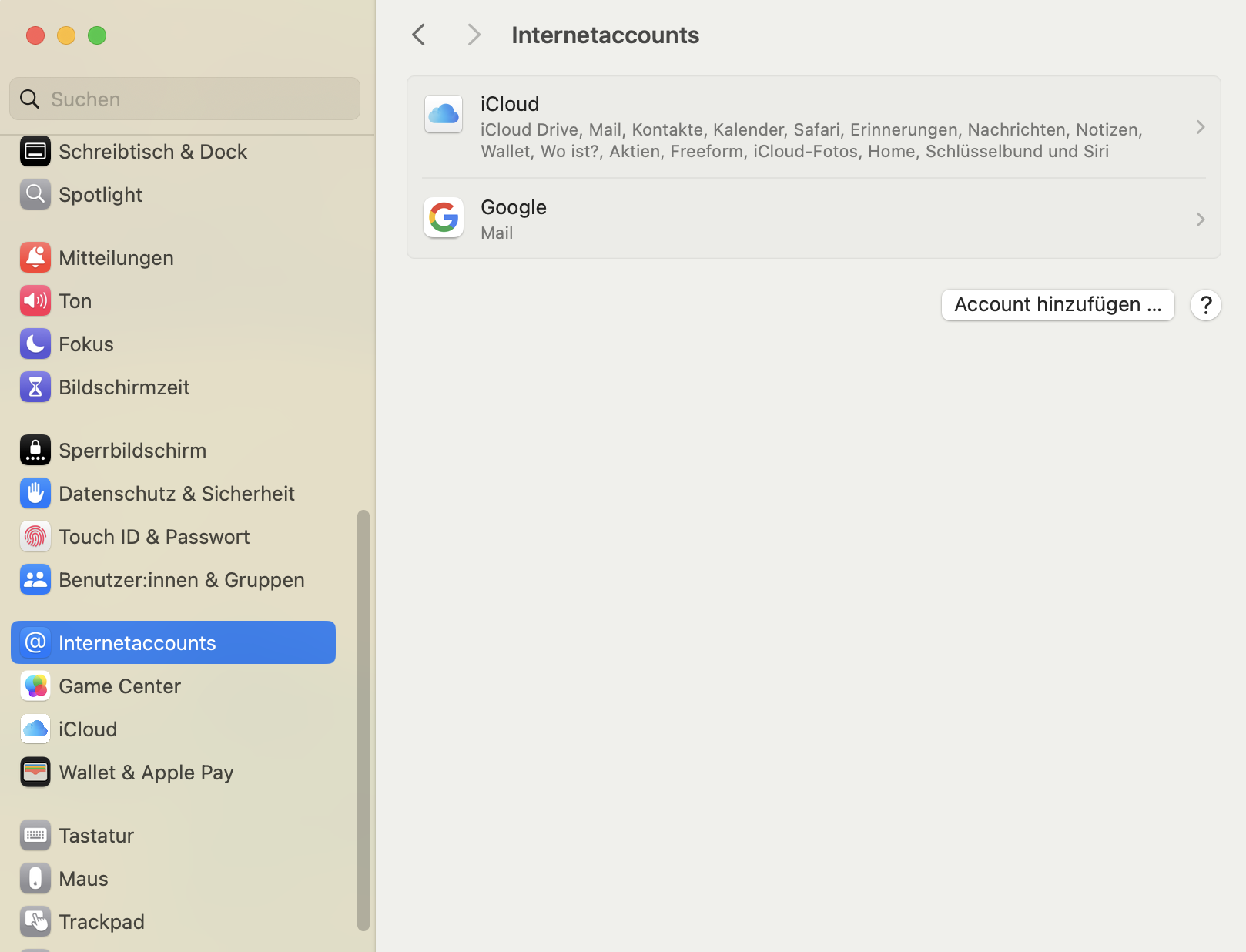
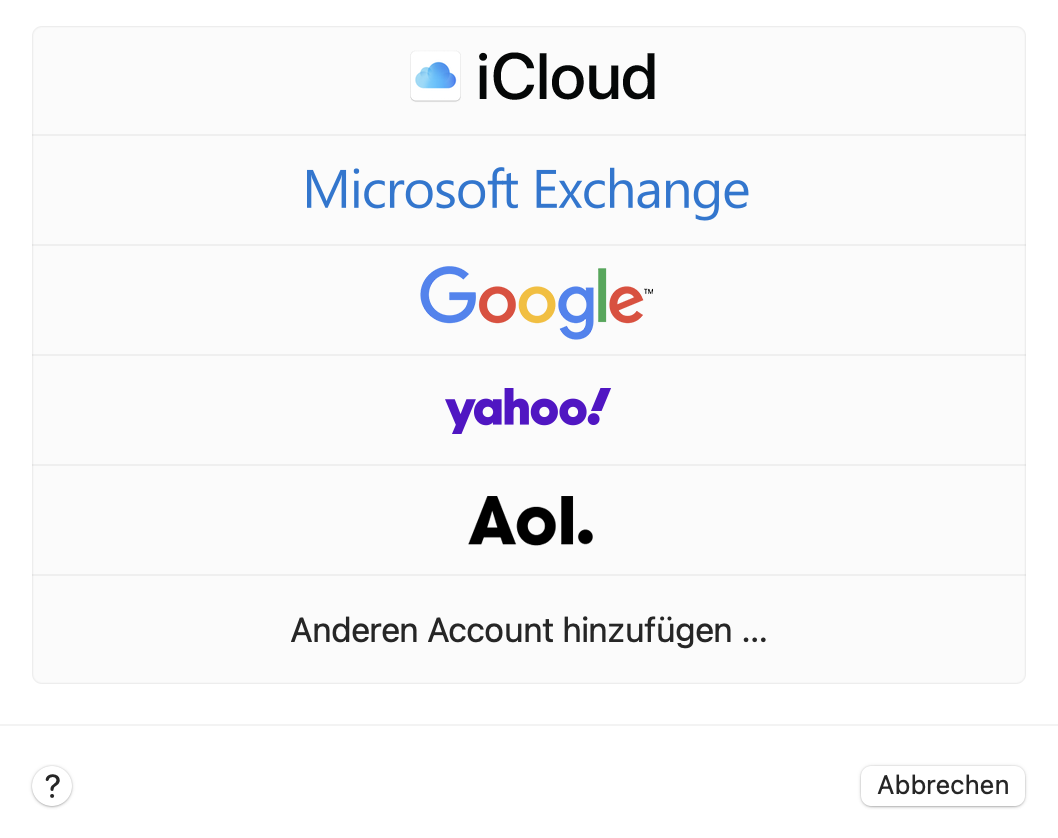
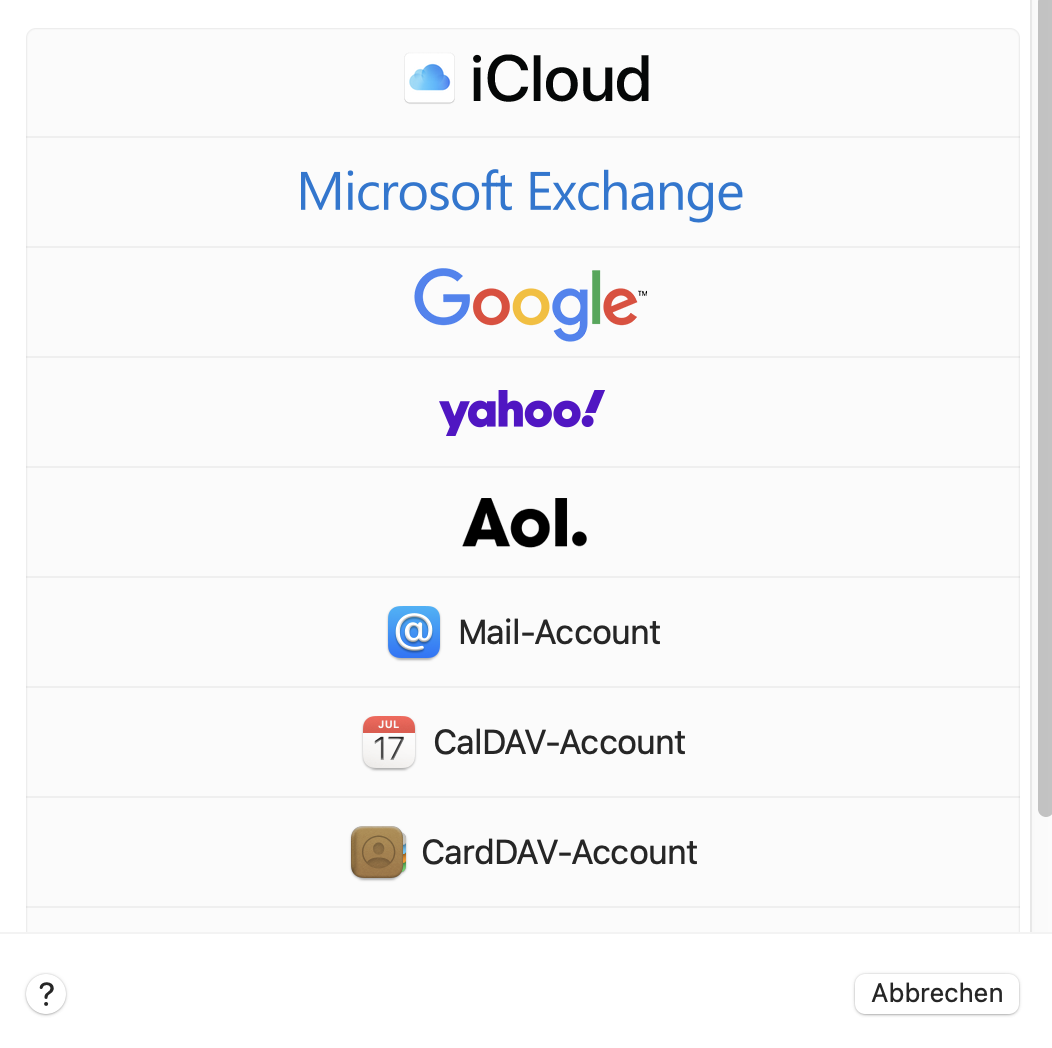
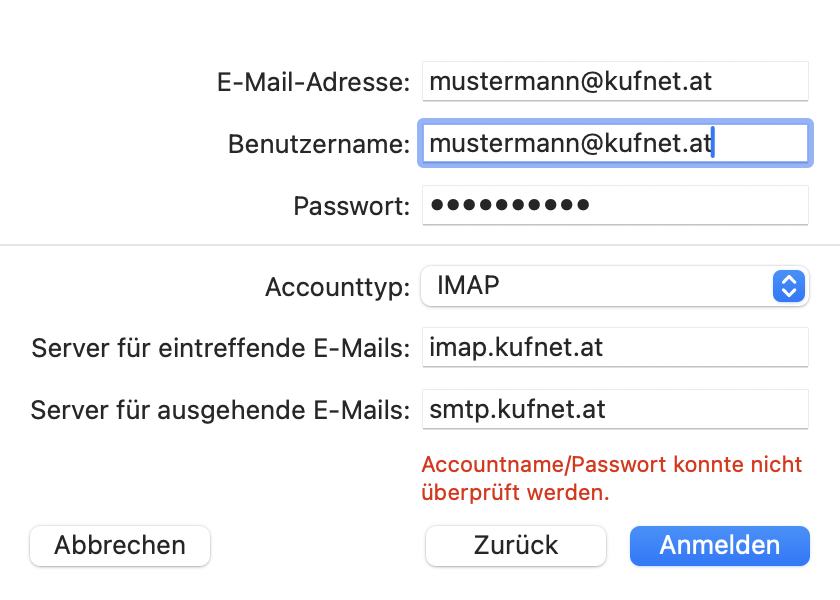
  1. Open Settings and navigate to Internet Accounts from the left menu. On the right, select “Add Other Account”, then choose “Mail Account.”
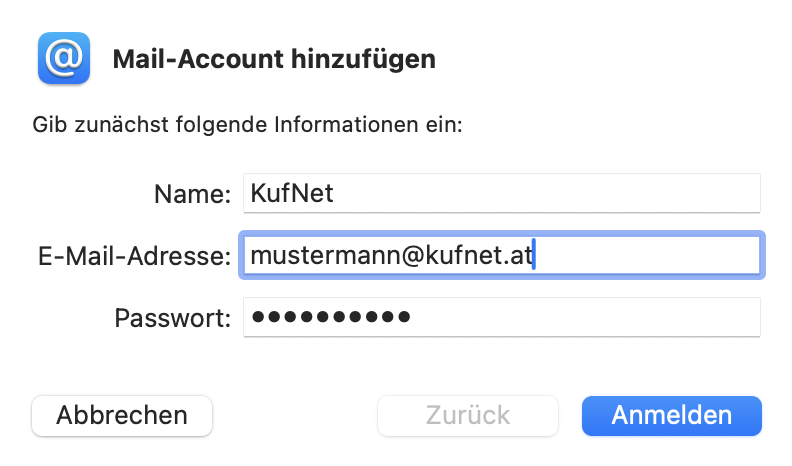
  2. Enter your name, email address, and email password.
  3. For username, enter your full email address.
  • Incoming mail server: imap.kufnet.at
  • Outgoing mail server: smtp.kufnet.at

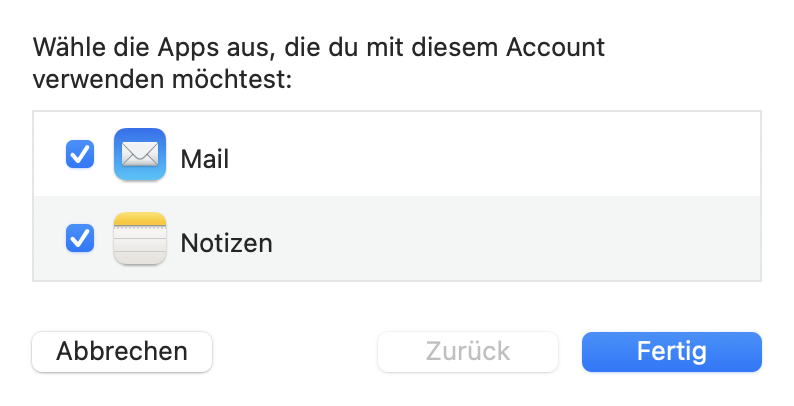
Click “Done” to complete the setup.

Your KufNet email account is now successfully configured and ready to use in the macOS Mail App.

1
2
3
4
5
6
Setup: iOS-Smartphone/Tablet

To configure your KufNet email account on an iPhone or iPad, follow these steps:

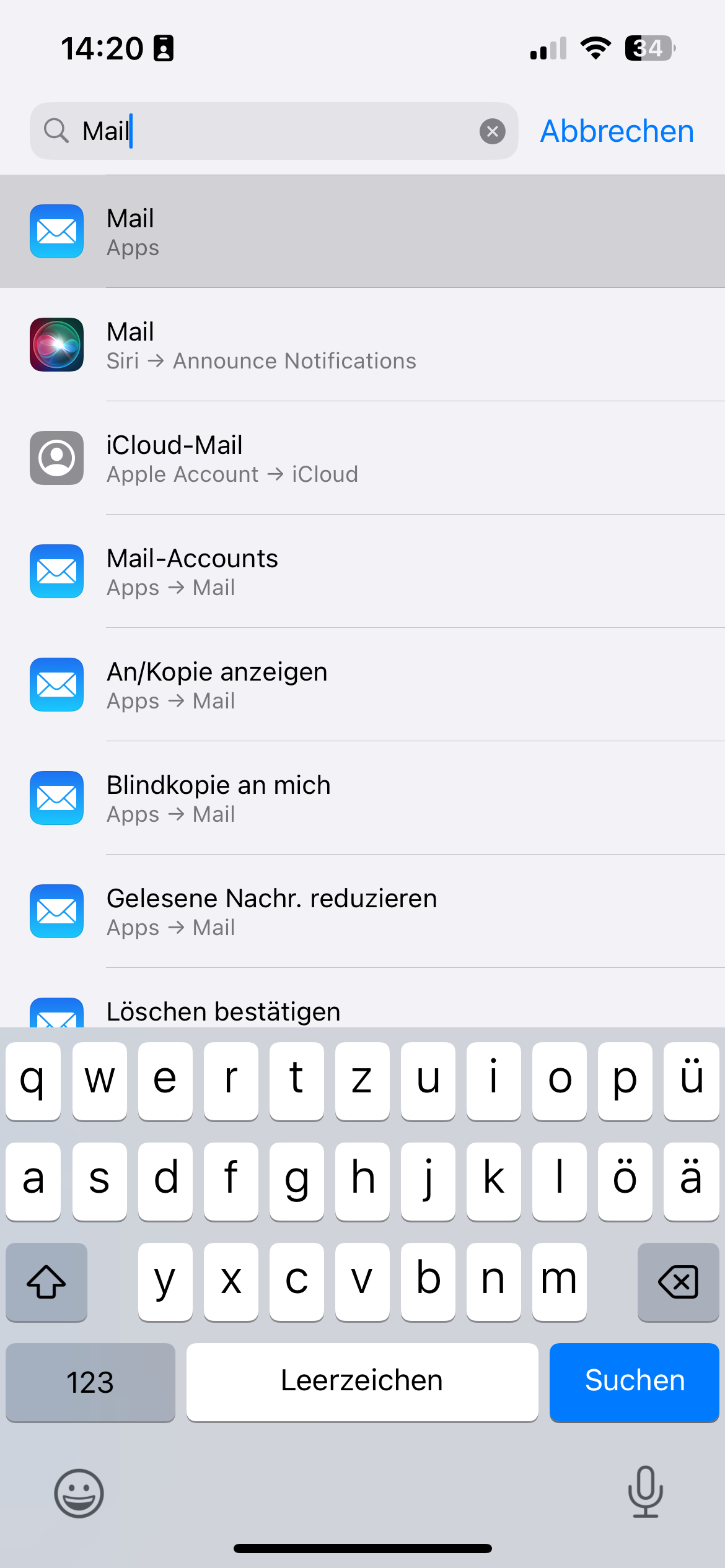
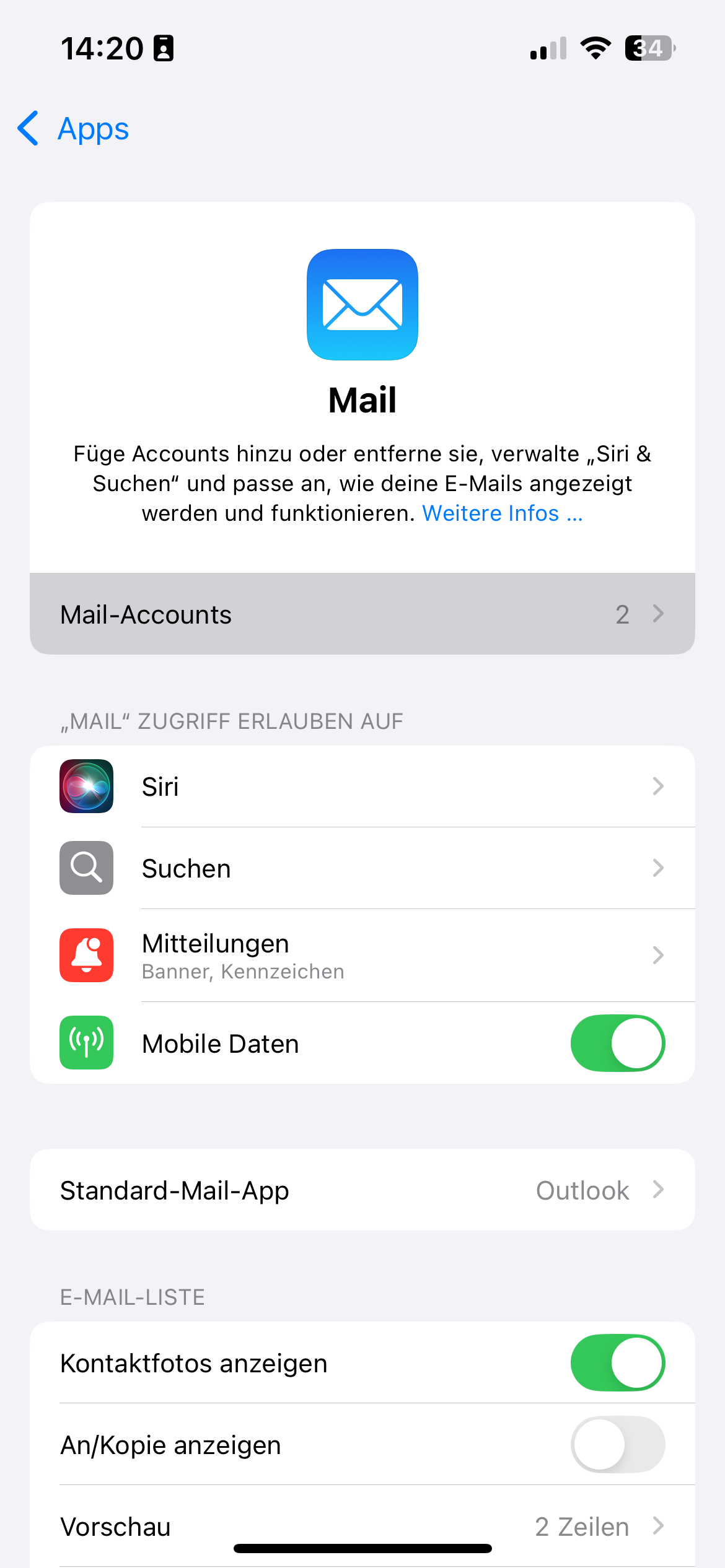
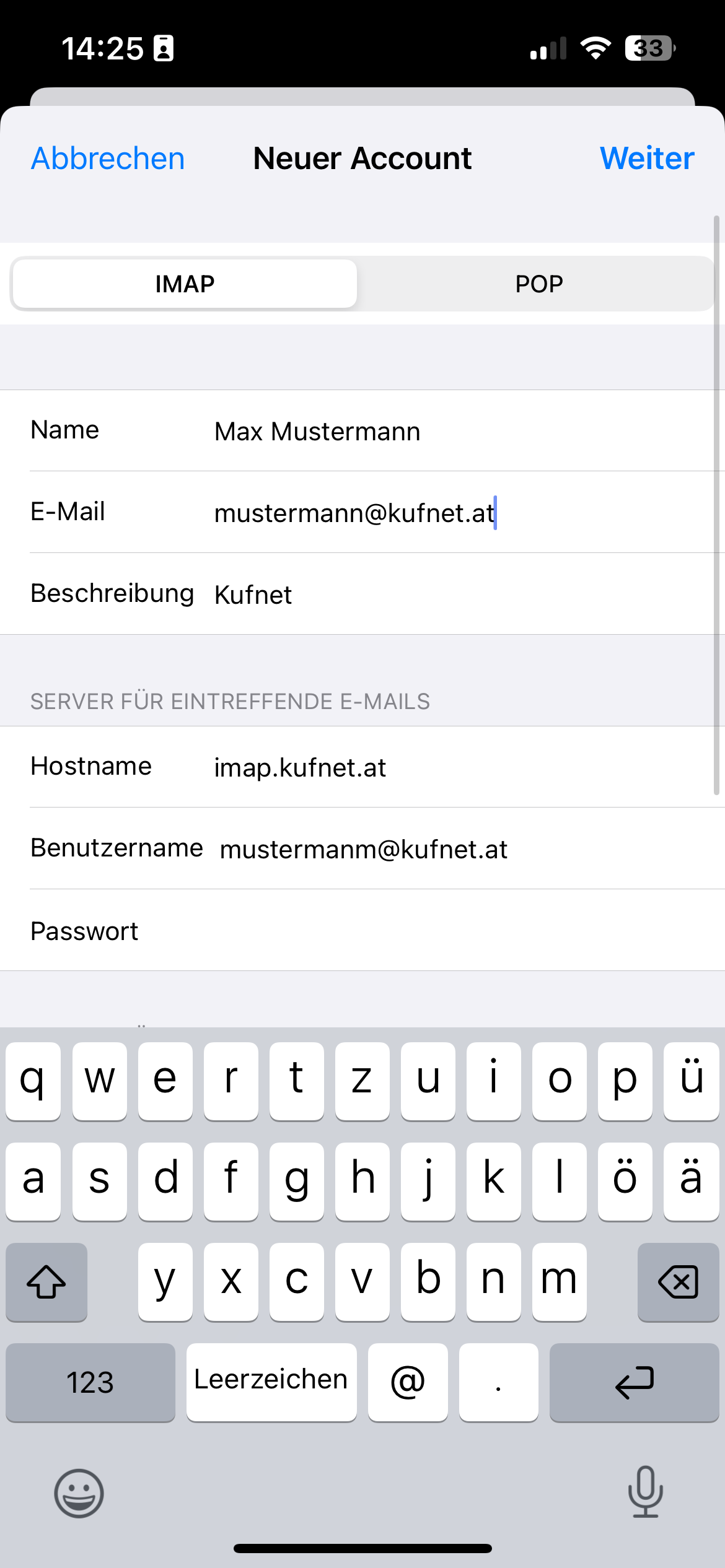
  1. Open the “Settings” app and search for “Mail”.
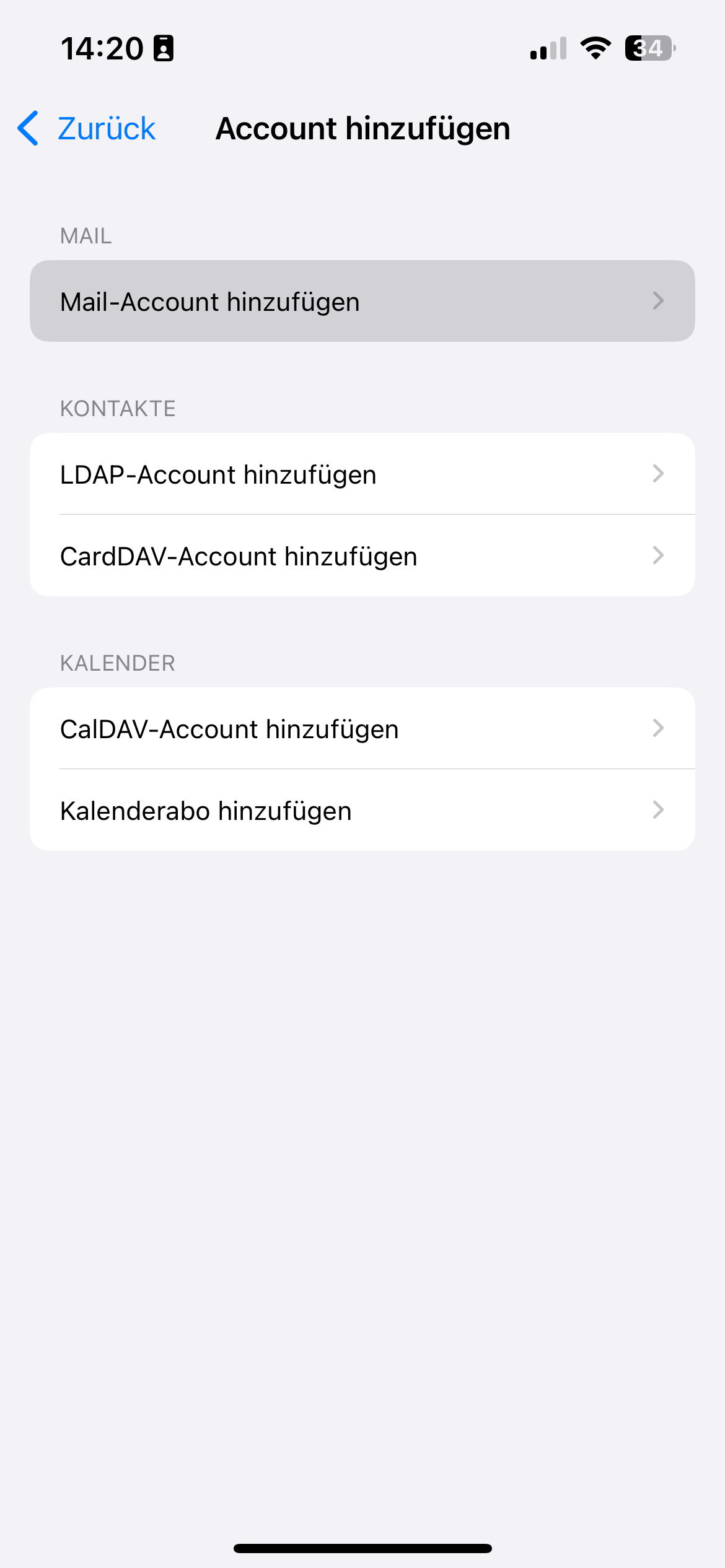
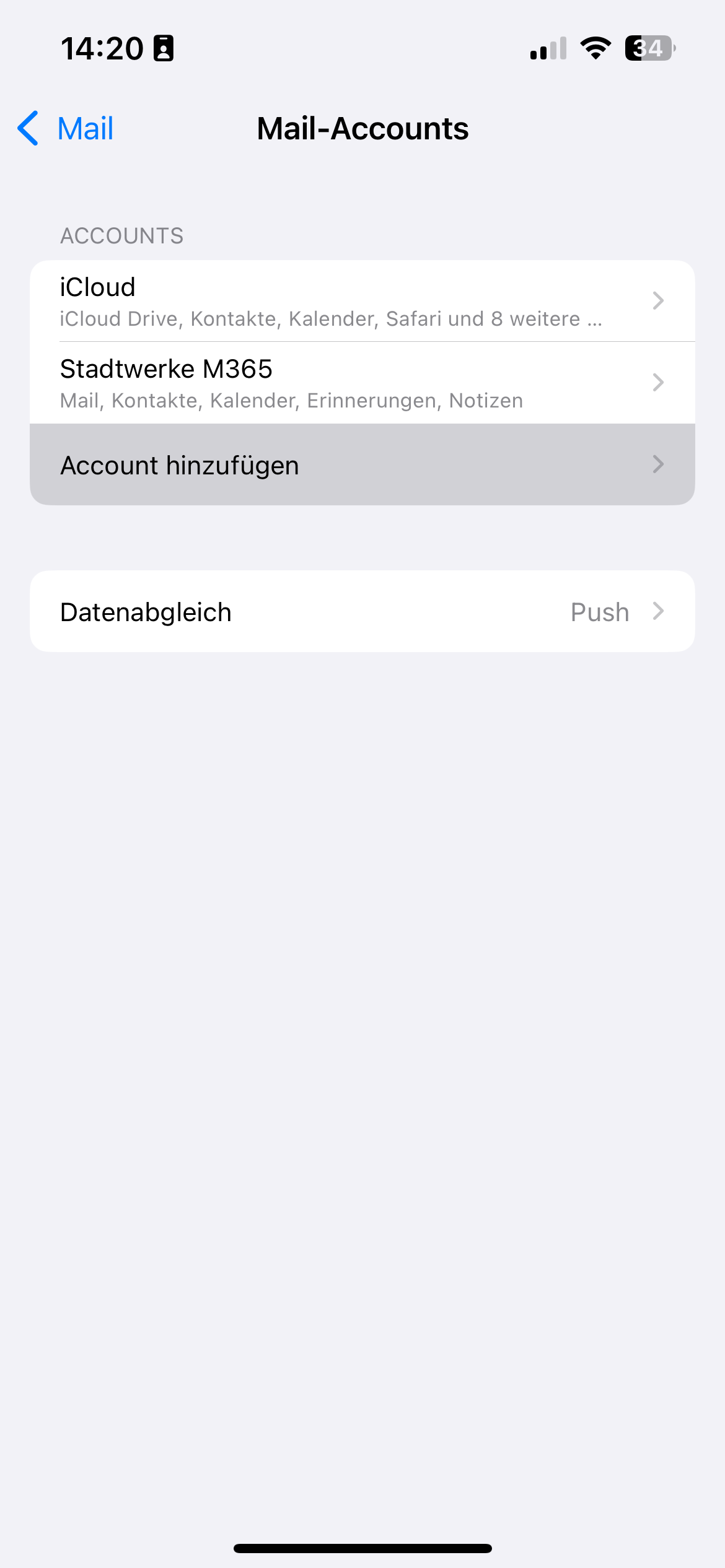
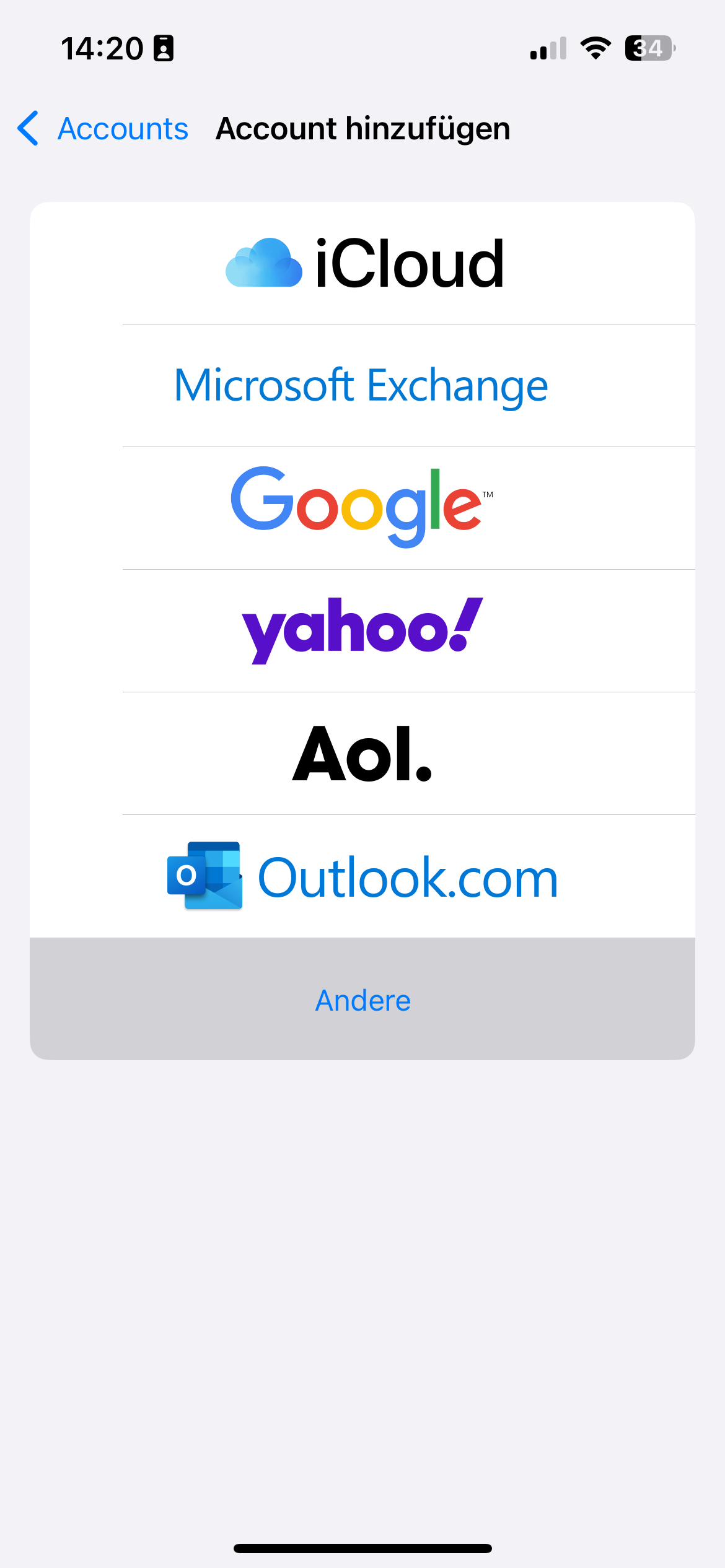
  2. Tap “Accounts” → “Add Account” → “Other”.
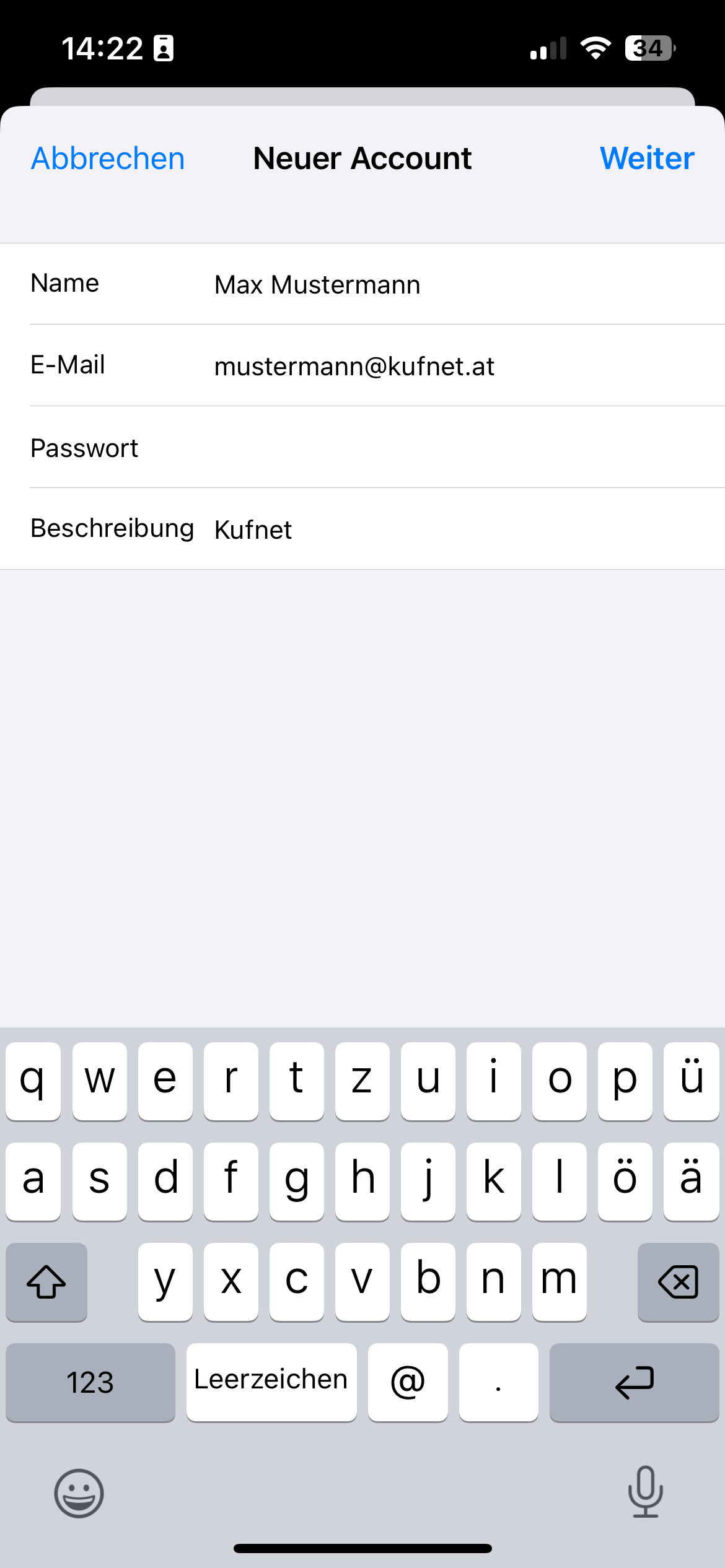
  3. Select “Add Mail Account”, then enter your name, your KufNet email address, and your email password.
  4. Choose “IMAP” at the top and fill in the following information:

Incoming Mail Server:

  • Hostname: imap.kufnet.at
  • Username: (your full email address)
  • Password: (your email password)

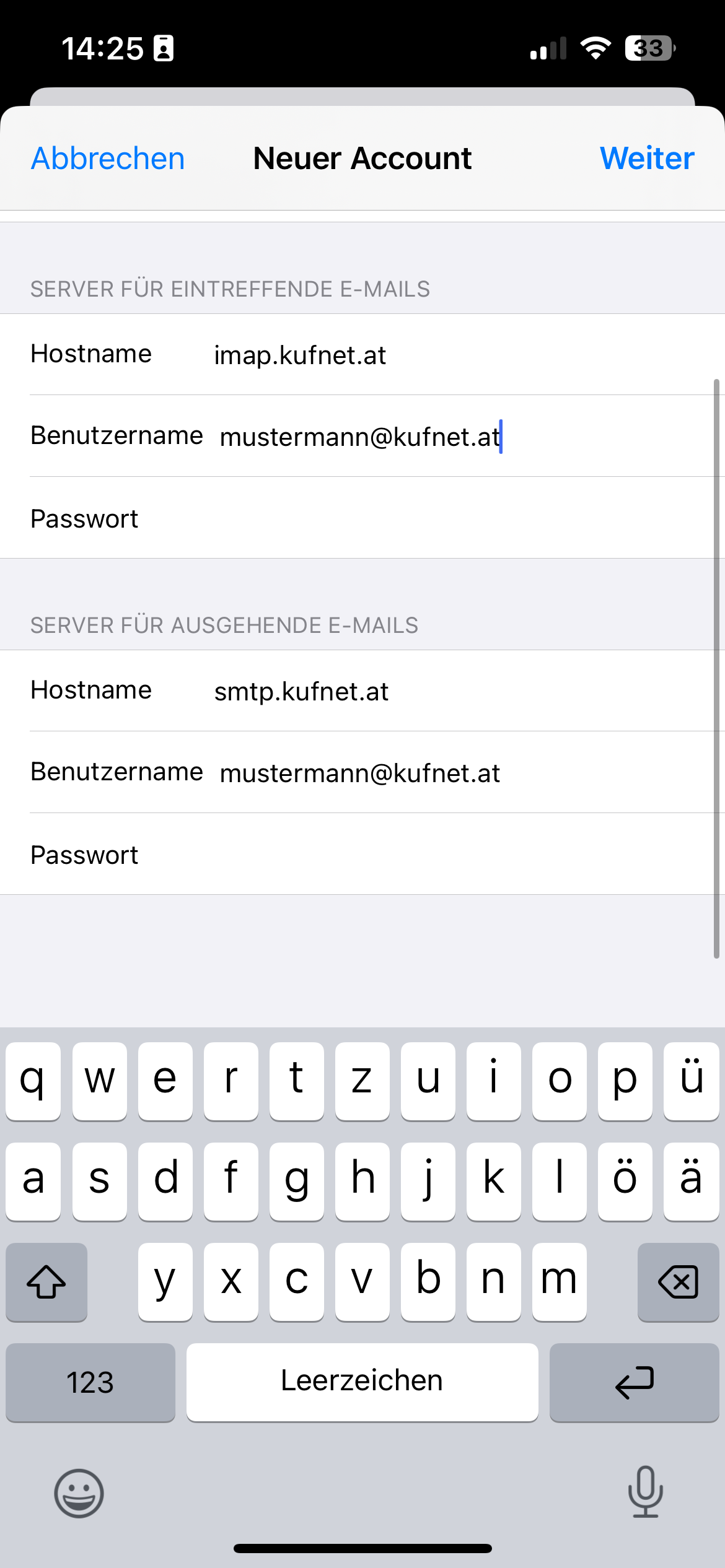
Outgoing Mail Server:

  • Hostname: smtp.kufnet.at
  • Username: (your full email address)
  • Password: (your email password)

Your KufNet email account is now successfully set up on your iPhone or iPad and ready to use.

1
2
3
4
5
6
7
8
Setup: Android-Smartphone/Tablet

To configure your KufNet email account on an Android device, follow these steps:

  1. Open the Gmail app.
  2. Select “Other” as the account type.
  3. Enter your KufNet email address and tap “Next”.
  4. Choose IMAP as the account type.
  5. Enter your email password.
  6. For the incoming mail server, enter: imap.kufnet.at.
  7. For the outgoing mail server, enter: smtp.kufnet.at.
  8. Tap “Next” and follow the prompts.
  9. Enter your name when asked.

Your KufNet email account is now successfully added to your Gmail app on Android.

Creating Spam Filter Exceptions in Webmail

If you want certain emails to not be marked as spam, you can set up an exception filter in KufNet Webmail. Follow these steps:

  1. Log in to Webmail
    Go to webmail.kufnet.at and log in using your username and password.
  2. Open Filter Settings
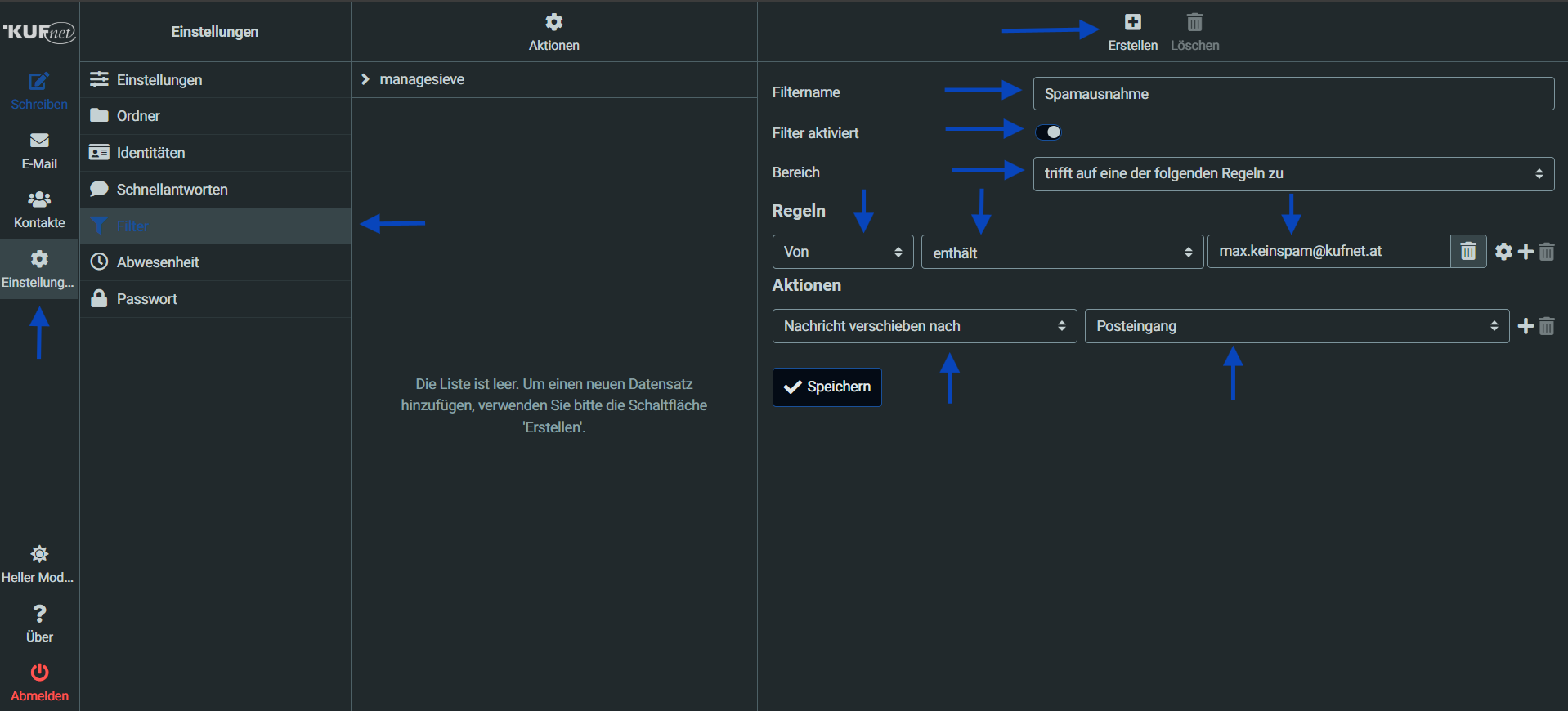
    In the top-right corner, click on “Settings”.
    Then select the “Filters” section.
    Click on “Create” in the upper right toolbar.
  3. Set Up the Filter
    In the filter setup window, fill in the following:
    Filter name: Choose any name
    Condition: Select “Matches any of the following rules”
    Rule 1:
    First dropdown: “From”
    Second dropdown: “contains”
    Third field: Enter the email address you want to exclude from spam filtering
    Action:
    First dropdown: “Move message to”
    Second dropdown: “Inbox”
  4. Save the Filter
    Click “Save” to activate the rule.

To add more exceptions, repeat steps 2 and 3 for each sender. To edit an existing exception, go back to Settings → Filters, and select the one you'd like to modify.

1
Receiving and Sending Emails Abroad

You can access and manage all your emails abroad using Webmail. If your email client is properly configured on your smartphone or tablet, both sending and receiving emails will work seamlessly—anywhere you have a working internet connection.