A division of Stadtwerke Kufstein.

Internet-FAQs

My Internet isn’t working

If your internet connection is not working but the modem shows active lights, follow these troubleshooting steps:

  1. Restart your modem
    Unplug the power cable from your modem and leave it unplugged for 2–3 minutes.
  2. Reconnect and wait
    Plug the modem back in and wait until all lights are back to normal.
  3. Test the connection
    Check if the internet is working again. If not, double-check all cable connections and consider restarting your router or computer as well.

If the issue persists, feel free to contact us for further assistance:

+43 5372 6930 351 infoSpamschutz@Spamschutzkufnet.at

I want to change my internet plan

At KufNet, you can switch your internet plan at the end of any month.

To request a change, simply fill out our online tariff change form. We’ll take care of the switch and notify you in time about the start date of your new plan.

Plan ChangeChange your plan here

KufNet Switch Offer

Already convinced by KufNet Internet?

If you're still bound to your current provider, we offer you the chance to use KufNet Internet free of charge for up to 12 months during your remaining contract period.

For more details about this offer, we're happy to advise you personally.

+43 5372 6930 351 infoSpamschutz@Spamschutzkufnet.at

Moving with KufNet

If you're relocating, simply notify us using our online address change form.

  • KufNet connection available at your new home?
    You can take your modem with you and continue surfing right away.
  • No KufNet connection at your new address?
    We'll check availability and advise you on the next steps.

Go to address change form

How do I connect my Windows device to Wi-Fi?

To connect your Windows device to a Wi-Fi network, follow these steps:

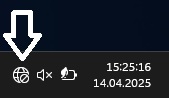
  1. Click on the globe or Wi-Fi icon at the bottom right of the taskbar.
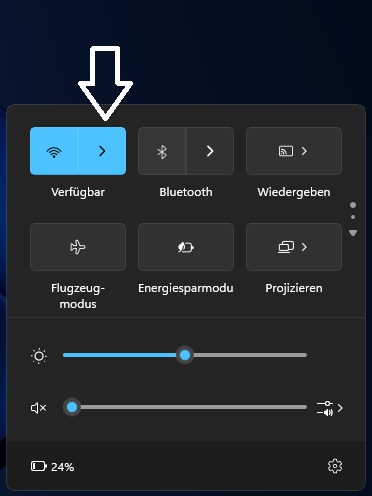
  2. Click the arrow next to the Wi-Fi icon to view available networks.
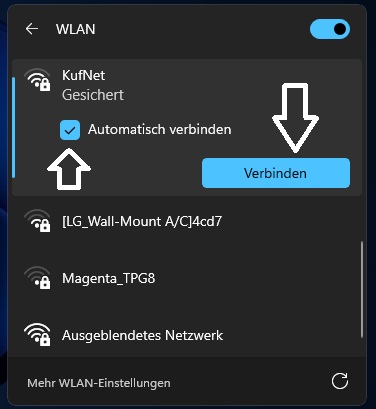
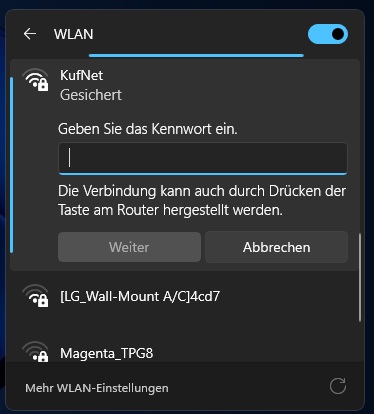
  3. Select your desired Wi-Fi network, enter the Wi-Fi password, and confirm with Connect.
  4. Wait a few seconds until your device is successfully connected.
1
2
3
4
What should I do if I forgot my router password?

Since router passwords are not stored, the router must be reconfigured.

  • If you are using a WLAN modem, the same recovery rules apply as for your email password.
  • For a FRITZ!Box, you can find the default password on the underside of the device.

If you need assistance with reconfiguring your device, our customer service team is happy to help.

+43 5372 6930 351 infoSpamschutz@Spamschutzkufnet.at

Useful Information about the FRITZ!Box Modem

Costs

KufNet provides customers with a free WLAN modem for the duration of their contract.

The following tariffs include a FRITZ!Box at no additional cost:

  • KufNet CLASSIC
  • KufNet PLUS
  • KufNet RELAX
  • KufNet GIGA

In the tariffs KufNet LIGHT and KufNet LIGHT PLUS, a standard WLAN modem is included.
Optionally, a FRITZ!Box can be purchased for a one-time fee of €49.

Change WLAN Name and Password

Connect to the FRITZ!Box by entering "fritz.box" in your browser.
You will be directed to a login window where you must enter the password (located on the underside of the FRITZ!Box).
Once logged in, you can adjust your WLAN settings by clicking on "Change WLAN Settings" at the bottom right.

Connect WLAN Repeater

Step 1: Plug in the repeater near your FRITZ!Box. Briefly press the red "Connect" button, then the repeater will start blinking.
Step 2: Press the "Connect" button on your FRITZ!Box. The LED will also blink.


After a few minutes, the repeater should display a steady green light – it's now successfully connected.
You can move the repeater to the desired location.

See the manufacturer's instructions

Connect Powerline Adapter

Step 1: Plug the first adapter (without WLAN) into a socket near the FRITZ!Box (avoid power strips). Connect it to the FRITZ!Box using a LAN cable.
Step 2: Plug in the second adapter (with WLAN).
Step 3: Press the "Connect" button on both devices.
To transfer the WLAN settings from the FRITZ!Box to the adapter, press the Connect button on the WLAN adapter and then on the FRITZ!Box.

See the manufacturer's instructions

Set Up Port Forwarding

See the manufacturer's instructions